Skip to content
Cornetamulti-stream
Corneta · multistream on your PC

One stream.All your communities.Nothing slips past you.

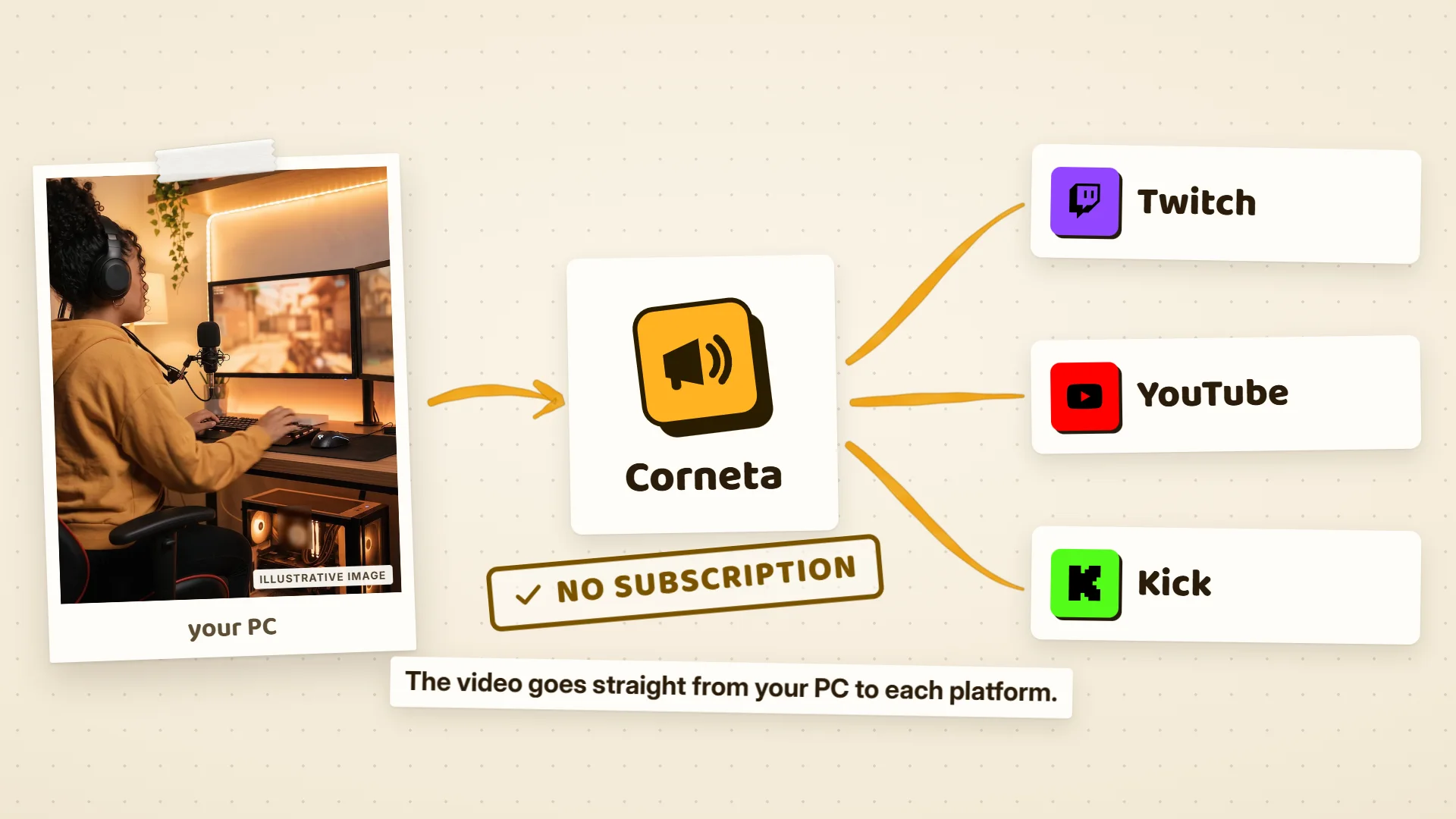
You stream like you always do. Corneta pushes that signal out to Twitch, YouTube, Kick and wherever else you want — each one on its own connection. And it doesn't look away: it keeps the stream alive if your connection drops, pulls every chat into one window and, when it's over, tells you how it went.

Free No watermark Open source (MIT)
Illustrative preview of the Corneta app on the “Live” screen: the OBS signal goes out to Twitch, YouTube and Kick, each destination with its own quality and its own switch, with chat from all three platforms gathered beside it.
Cornetamulti-streamILLUSTRATIVE PREVIEW
stream panelLive
your upload25 Mb/s
the stream needs18.5 Mb/s
headroomeasy
Twitch1080p60 · 6000 kbps
Copy
YouTube1080p60 · 6000 kbps
Copy
Kick1080p60 · 6000 kbps
Copy
GO LIVE
Download free for Windows

Corneta for Windows 10/11 · no sign-up · no subscription

1 signalfrom OBS, Streamlabs, XSplit…
Each platform on its ownif one drops, the rest stay live
All on your PCyour keys, your settings and the report from every stream
After you hit GO LIVE

One screen — even when it all goes sideways.

No alt-tab to find out who's still live and who's talking to you.

If Kick drops, Twitch never finds out

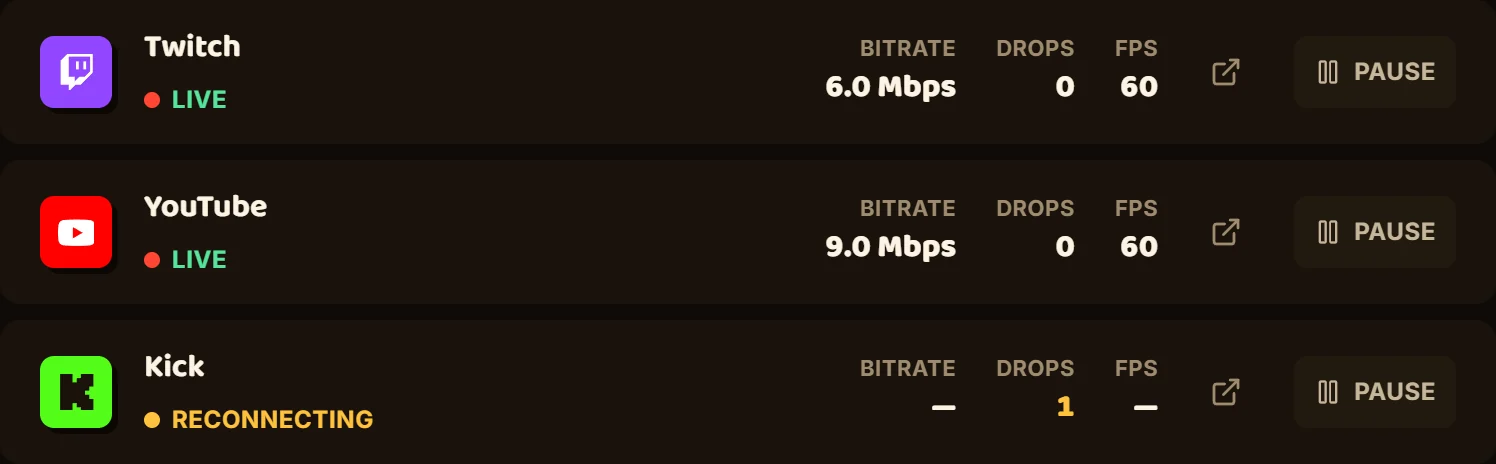
Every platform gets its own connection. When one is reconnecting, the rest keep going — and you see it on the panel, which platform and what time, instead of finding out from chat.

You can pause one platform and leave the rest running
your platformsexample
OBS
Twitch live
YouTube live
Kick reconnecting

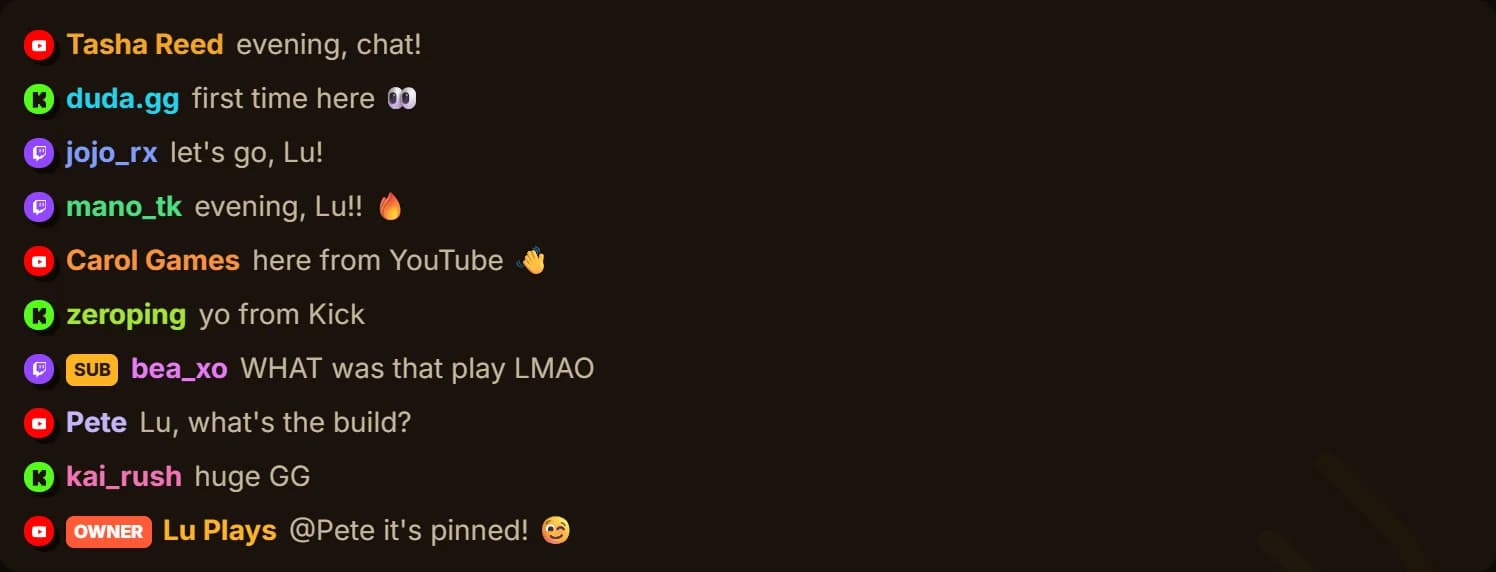
All three chats in one column, emotes and all

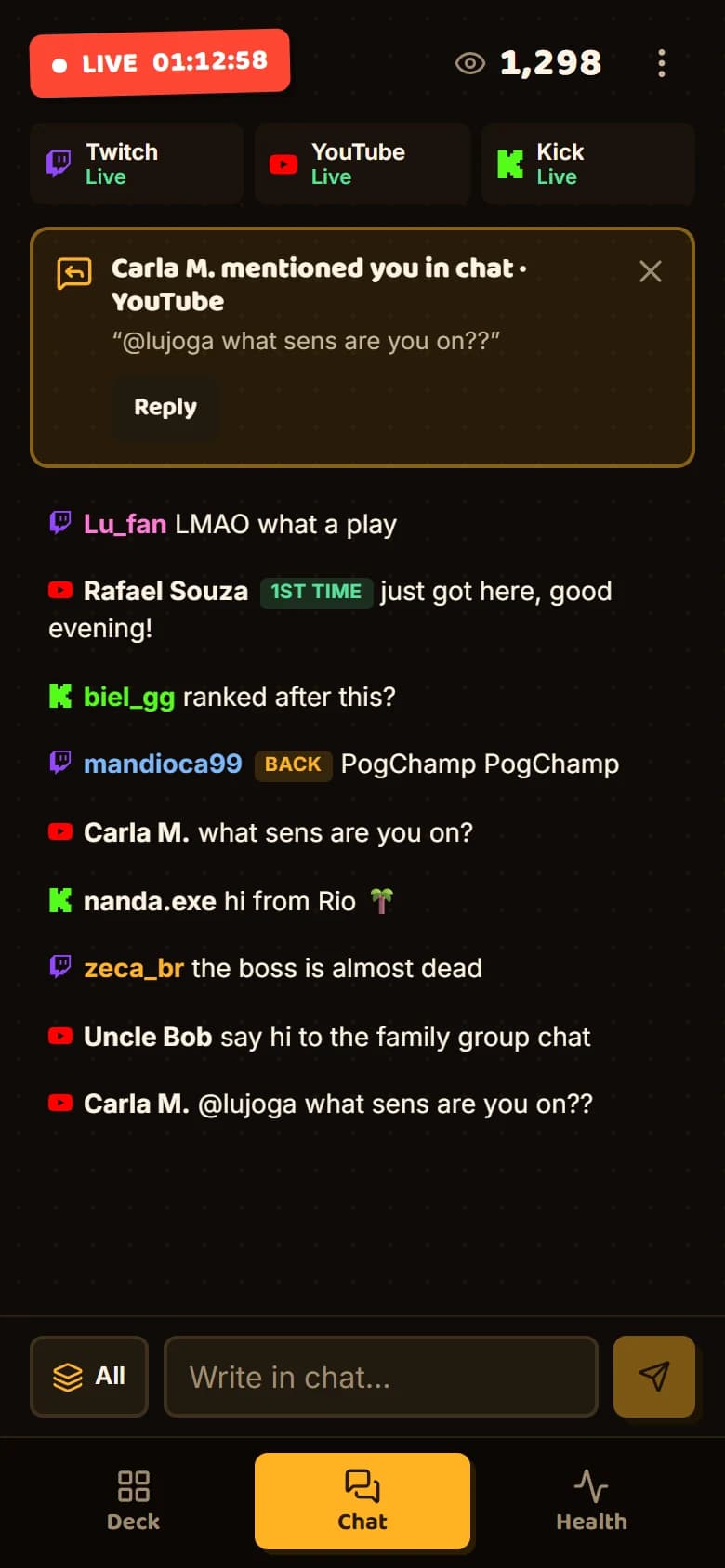
Twitch, YouTube and Kick scroll together, in the order things happened, and you reply right from there. The sub alert drops into the same column, right above whatever got typed next.

You can pop it out into its own window on your second monitor
chat in one placeexample
gabzilla · Twitch

yooo just got here

Marcus L. · YouTube

audio's clean today 👏

dannyxx · Kick

let's goooo!!

Reply to all three at once…send
How good it looks on each platform

The same picture for every platform, or one sized for each.

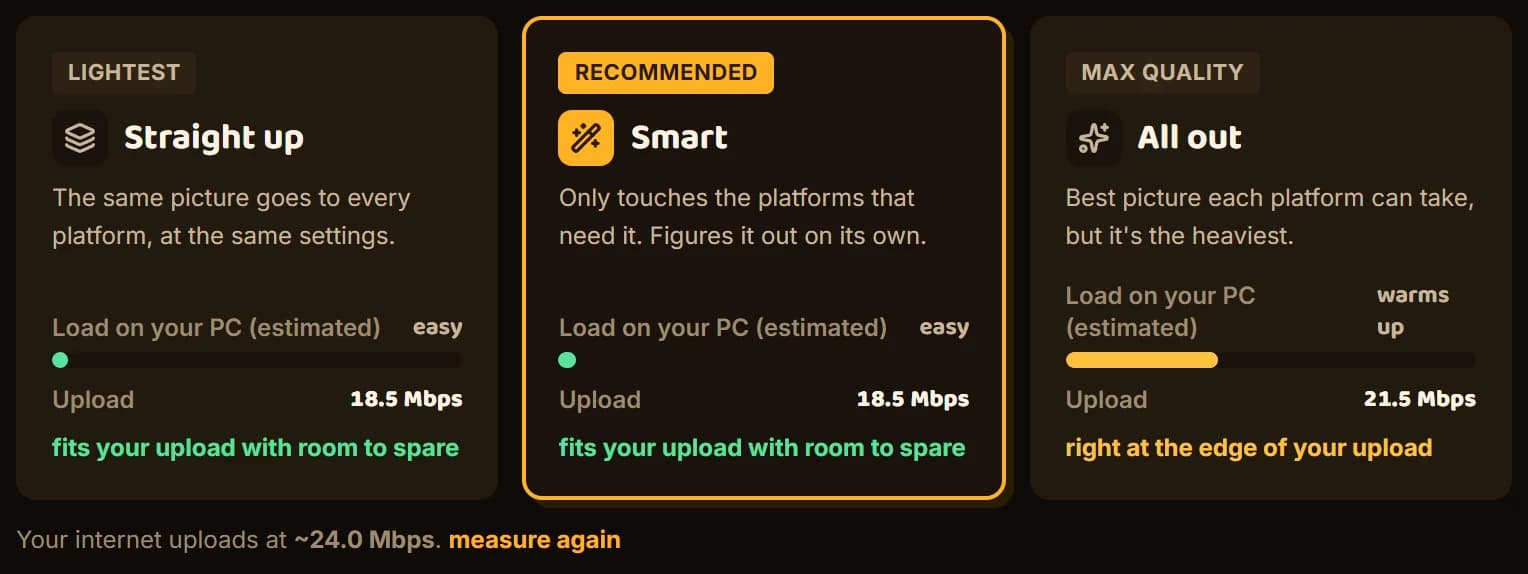
Your stream can go out looking great on every platform without frying your PC — but that's a choice, and it costs you upload and GPU. You see that bill before you go live, not halfway through it. Here's what changes in each mode:

The same picture goes to every platform, at the same settings.

4 platforms hooked upapp's estimate
Twitch1080p60 · 3000 kbps
Copy
YouTube1080p60 · 3000 kbps
Cópia
Kick1080p60 · 3000 kbps
Cópia
TikTokgets landscape video
Won't work
total upload12.6 Mb/s
conversionsnone
estimated loadalmost none

TikTok is the weakest one on the list, so everybody drops to its bitrate — and it still gets landscape video. Corneta shows you that damage before you go live, with the fix one click away.

Your landscape stream going out vertical

TikTok and Instagram only take vertical video. Instead of building a second scene and streaming twice, Corneta crops a 9:16 out of what's already on air — and you pick the framing by dragging the box, watching it as you go.

  • 9:16 crop with pan and zoom
  • Works with any vertical RTMP destination
TikTok and Instagram are still experimental: getting in depends on the platform clearing you first.
seu sinal do OBS · 1920×1080
720×1280

Pick a side of the frame: that is how you decide what goes vertical.

From setup to the report

Before, during and after — all in the same window.

Before the stream

Get to GO LIVE without that pit in your stomach.

Hook up the platforms, measure your upload and get everything ready in a few clicks. Corneta sets OBS up for you — and hits play on it when you press GO LIVE.

  • A real upload test
  • Guided OBS setup
  • First-stream checklist
your upload · example25 Mb/senough for three platforms, with room to spare
During the stream

One glance out of the corner of your eye and back to the game.

Bitrate, fps, dropped frames and time on air for each platform, plus real CPU and GPU load. You can pause one without ending the others — and whichever one drops comes back on its own.

live panel · 01:42:08numbers are illustrative
Twitch5 998 kbps · 60 fps · 0 quedas · 1h42
no ar
YouTube6 002 kbps · 60 fps · 0 quedas · 1h42
no ar
Kickreconectando · tentativa 2 · 12 s fora
voltando
TikTokpausado por você · 720×1280
em pausa
CPU18%Placa31%1 284 assistindo
After the stream

Find out why it stuttered — and what to change.

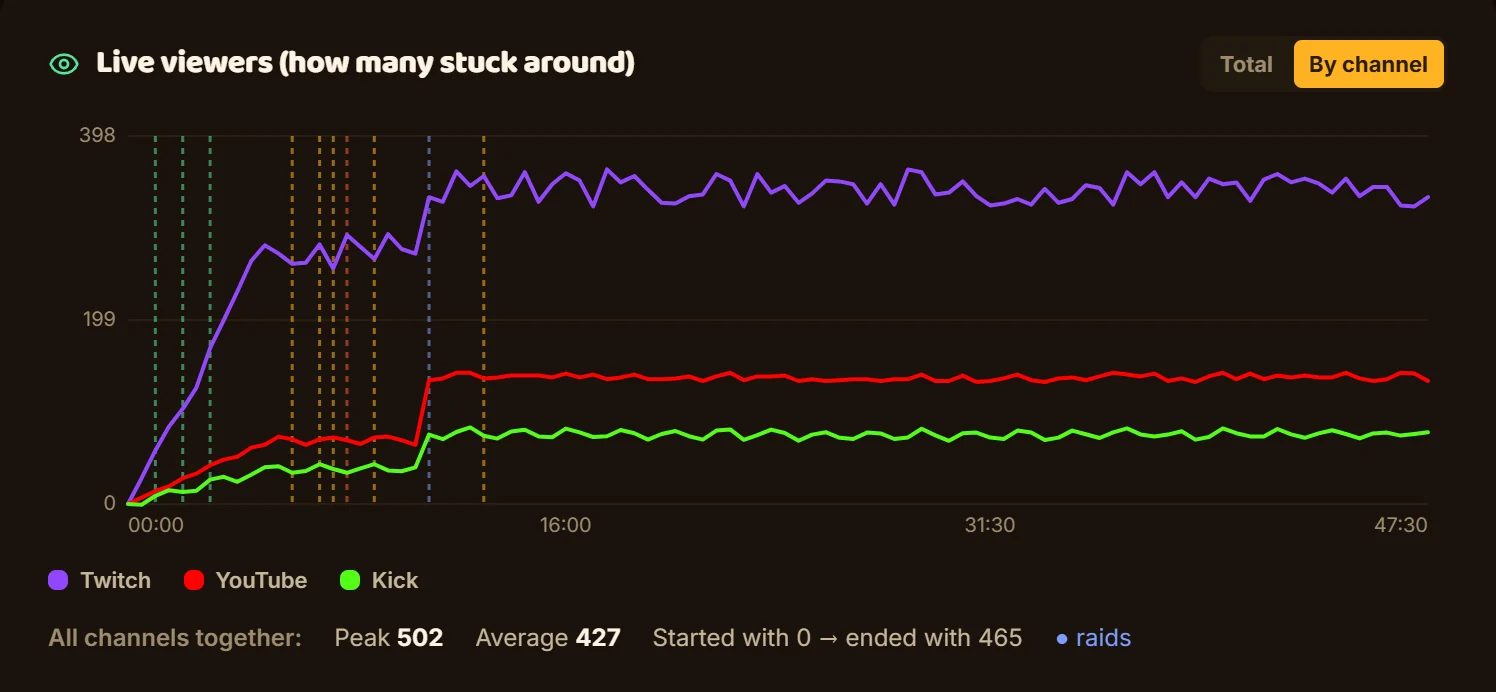
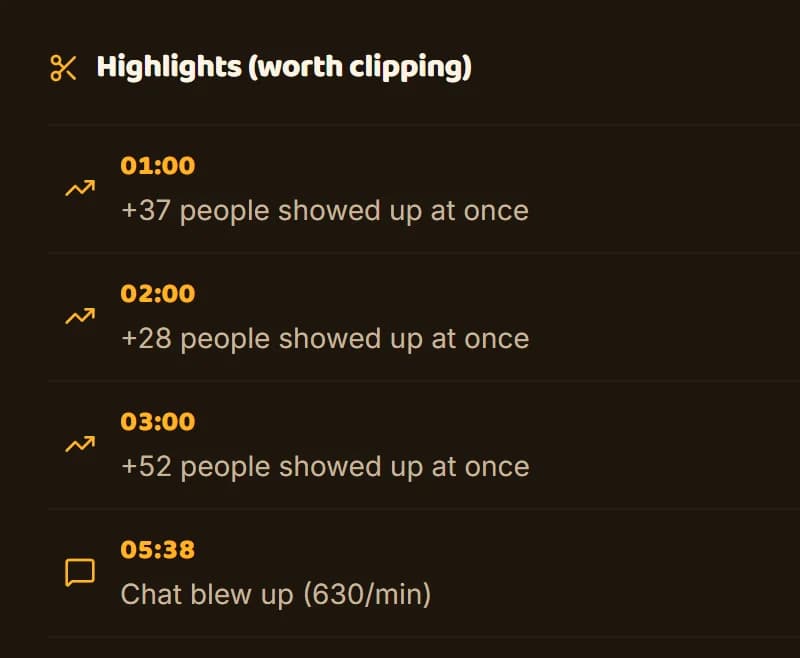
It's not a pile of loose numbers: Corneta cross-checks what your machine, your OBS and each platform did, then points at the likely cause of every stutter — with the minute to jump to in the VOD and what to change so it doesn't happen again.

stream report · 3h12sample session
21:0022:3000:12
pico 1 284média 8703 412 mensagensraid às 22:301 trecho com queda
Everyone in one feed

Nobody's left talking to themselves in a tab you never opened.

Read, reply and moderate without switching windows. Alerts from the platforms and from Streamlabs in the same panel. And an overlay you paste into OBS once and forget.

chat in one feed · 3 platformsexample
gabizeramod21:42

yo yo, just got here! :D

deletetimeoutreply
Marcos L.member21:42

audio's clean today 👏

duduxx21:43

let's gooo!!

bot_spam_xyz21:43

message removed by a mod

Say something…send to all platforms

Twitch, Kick and YouTube in the same feed — up to two Twitch channels at once. BTTV, FFZ and 7TV emotes, badges, timestamps and one field to send from. Delete and time out right in the feed: the message turns into a tombstone instead of vanishing with no explanation and leaving you in the dark.

Safety nets

Your stream shouldn't end because OBS froze.

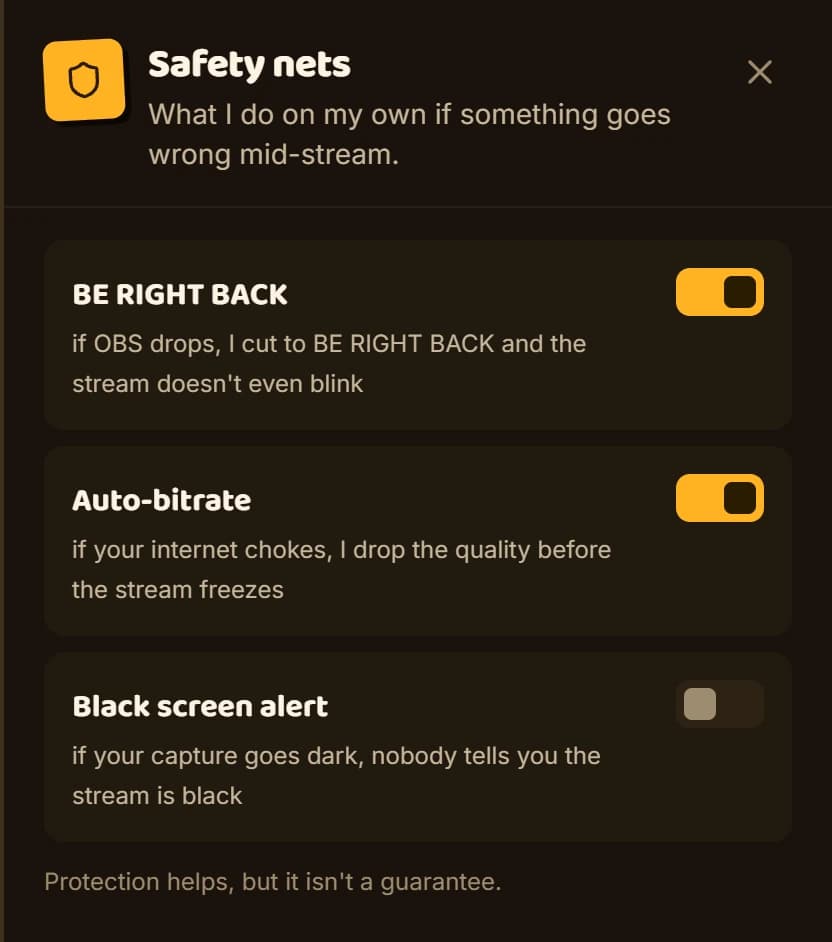
Four nets you turn on (or don't) in Settings. Each one costs you something — and Corneta tells you what it costs before you go live, not in the middle of it.

“BE RIGHT BACK”: the signal drops, the stream keeps going

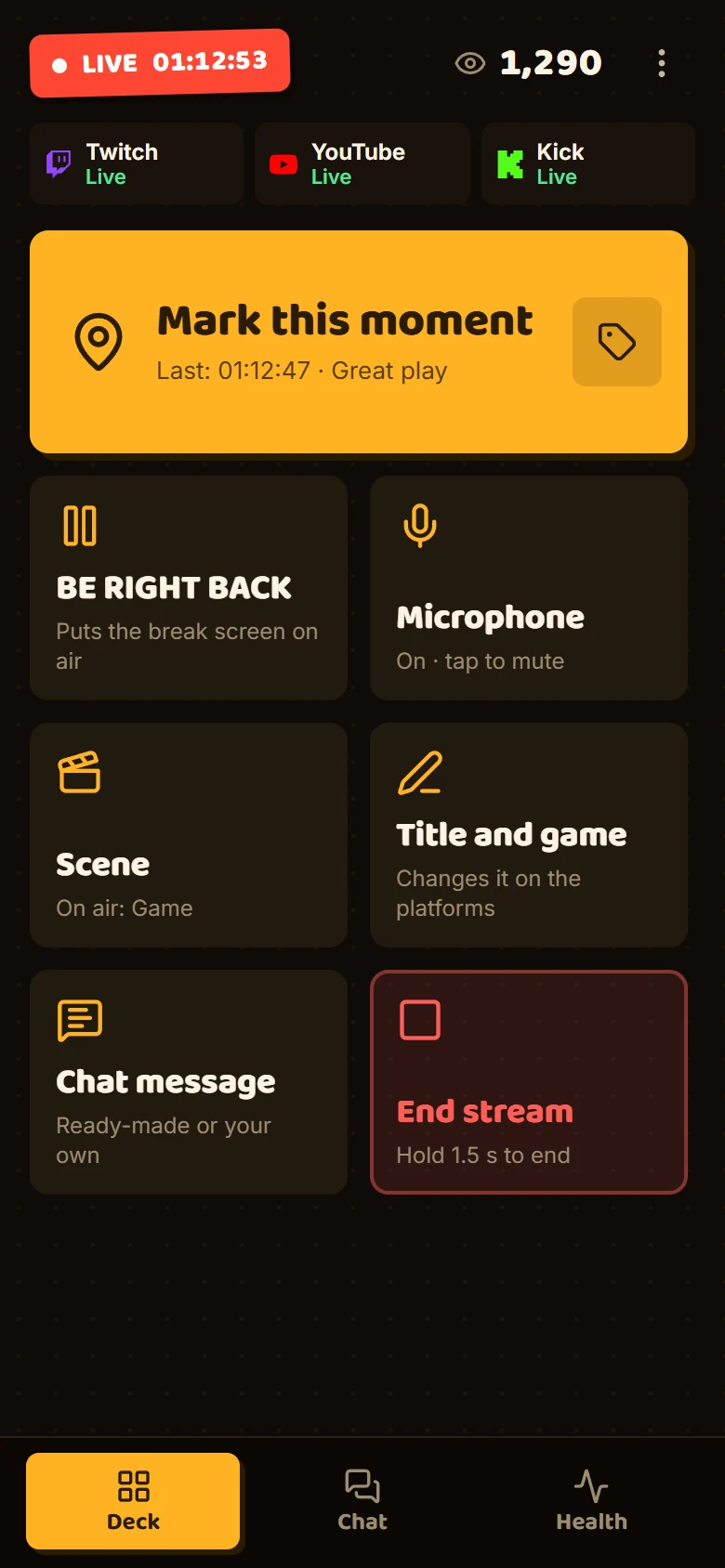
If OBS drops mid-stream, this screen goes on air without dropping the platforms — from the viewer's side the stream doesn't even blink, and it comes back on its own when the signal returns. It also works for a manual break: one click and you're out of the chair with the mic muted.

Use Corneta's slate or your own image or video
CORNETA · MULTI-STREAMBE RIGHT BACK

back in a sec — hold the horn 📣

Auto-bitrate

If your internet chokes, Corneta drops the video quality for a while instead of letting the stream stutter or die — and brings it back up on its own.

Only works on the platforms being re-encoded; the ones getting a straight copy go out exactly the way OBS sent them.on by default

Privacy guard

You list the words that can't leak — email, real name, address. If one of them shows up on screen, Corneta cuts to BE RIGHT BACK before it goes on air.

Costs 12s of delay on the whole stream (the chat too). Safety net, not a guarantee.experimental

Audio normalizer

Corneta evens out your audio before it goes out — no “can't hear you” from chat, no blown-out ears when you switch scenes, in the same encode that was already running.

If you already normalize in OBS, leave this off so the two don't fight.optional
From your streaming app to everyone watching

You go live in three steps.

No terminal, no Docker, no server address to memorize.

  1. 1

    Pick where you want to show up

    Corneta opens the right page on each platform for you to copy the key, and keeps it in Windows Credential Manager — never in a config file.

  2. 2

    Hook up your streaming program

    With OBS, Corneta sets it up by itself. With anything else (Streamlabs, XSplit), you paste one address and one key — once, and never again.

  3. 3

    Hit GO LIVE

    The panel shows each platform coming on air, one by one, and you go back to the game. If you want, Corneta tells OBS to start along with it.

    GO LIVE
Actually runs on your PC

No monthly fee, because there's no Corneta server in the middle.

The heavy lifting happens on the machine that's already streaming. Settings, keys and reports stay with you — and even the OBS overlay is a server that only answers inside your own computer.

  • Free, no sign-up
  • Open source, MIT license
  • Keys in Windows Credential Manager
  • No watermark

Open source: you can open the repo and see exactly what the app does with your key. See the code

The honest math

Every platform eats a chunk of your upload.

And bumping the quality for each one hits your graphics card or your CPU. Corneta measures your connection, adds it all up and shows you the math before you go live — not halfway through it.

From your channel to everywhere

The big four ready to go — the rest is on you.

The big four come ready, with each one's address already filled in. Add as many as you want — including any RTMP server that isn't on this list.

Twitch

Your usual stream

YouTube

Handles high quality just fine

Kick

Same deal as Twitch

Facebook

Go live on a Page or a profile

Custom RTMP

Any RTMP or RTMPS server

TikTok

Vertical video — your account has to be approved

Instagram

Vertical video — no official way in, so it can drop

X (Twitter)

You grab the key in Media Studio

TikTok, Instagram and X are experimental. Whether you get in depends on each platform's approval and its own sign-up flow, so they might just not work for your account.

So far, Twitch is the only platform where we've documented a real stream end to end. The others are built into the app and still being tested in the open.

Signing in with your account

What Corneta asks for — and what it does with it.

You can just paste your stream key and be done. But connect your account and the app does the boring part for you: creates the stream, grabs the key and pulls the chat in. Here's exactly what each permission is for.

YouTube account (Google)Manage your YouTube account

What it's for: Create the live broadcast and get its stream key automatically, give it the title you wrote in the app, end it when the stream is over, read and send messages in the live chat, and show how many people are watching.

What doesn't happen: Corneta does not upload recorded video to your channel, does not touch the videos already there, does not read your history, and does not use this data for advertising or model training.

Twitch accountRead and send chat, moderate, and manage the stream

What it's for: Show the chat in the app, reply from there, delete a message or time someone out when you say so, and follow the state of your stream.

What doesn't happen: Nothing is posted to your channel unless you ask for it, and Corneta does not follow, subscribe or change anything in your account.

Kick accountRead the channel, send chat, and moderate

What it's for: The same things as the unified chat: read, reply and moderate without leaving the app.

What doesn't happen: This is the only login that goes through our server, because Kick requires a server-side secret in the exchange — and even then the token is not stored anywhere.

Access tokens sit in Windows Credential Manager, on your machine — not on our servers, because there's no Corneta account and no database with your name in it. You can revoke access any time on the platform itself, and uninstalling the app wipes what it put there. The details are in the privacy policy.

The small stuff

The kind of thing you only notice on your third stream.

Global hotkey

Start and cut the stream without leaving the game — the key works even when Corneta's in the background.

YouTube on autopilot

With your account connected, Corneta creates the broadcast and drops the key into GO LIVE. You never open YouTube Studio.

Little chat window

Chat, alerts, or both in a window that sits on top of everything, at whatever size you want.

Saved profiles

Platform and quality presets, ready to go: your usual stream, the one with a guest, the test one.

Lives in the tray

Closing the window hides Corneta next to the clock — the stream stays up.

Starts with Windows

Boots up with the PC, ready to stream — if you want it to.

Light and dark theme

The same poster in the dark or on paper — and flipping it blows the horn.

Settings backup

Exports your setup to a file. The keys stay in Windows Credential Manager and don't go with it.

Before you download

What everybody asks before installing.

Including the ones that don't make us look good.

Download for free
Can I stream to Twitch and YouTube at the same time? Won't I get banned?

Each platform decides that, not Corneta — and those rules have changed a lot in the last few years: several of them allow it now, with conditions that depend on your account type or on a contract you signed. Corneta doesn't change any of that, it just sends your signal where you tell it to. Before you go live in two places at once, read the terms of whoever you already signed with. Five minutes now saves you a headache later.

I use Streamlabs (or XSplit). Does it work?

It works. Corneta takes any program that streams over RTMP — just point it at the address the app shows you, same as you'd do with a platform. With OBS you get one extra shortcut: Corneta sets it up for you, and hits play when you press GO LIVE.

Does Corneta replace OBS?

No. You keep building scenes, camera and audio in the program you already use. Corneta picks up from there: it takes that signal, pushes it to the platforms, watches how each one is holding up, and keeps the stream's safety nets running.

I already use a multistream plugin in OBS. Why switch?

If all you want is to send the same video to more than one place, the plugin does the job — and we'd rather tell you that now than after the download. Corneta earns its place when the stream is more than just pushing video out: it holds the stream up when your program crashes (the plugin goes down with it, because it lives inside OBS), puts chat and alerts from every platform in one place, warns you if something private of yours shows up on screen and, at the end, builds a report that cross-checks your machine, your OBS and each platform to say why it stuttered.

Is it really free? Will it turn into a subscription later?

It's free, no sign-up and no trial period. Everything that runs on your PC — multistream, chat, alerts, reports and protections — is open source under the MIT license and stays that way. If something paid ever shows up, it'll be an optional cloud service, and you'll know about it before you install anything.

Will it lag my game? Do I need a good graphics card?

Depends on the mode. Copying the signal from your program costs almost nothing — a modest PC handles it. Reworking the image for each platform puts the job on the graphics card (recent NVIDIA, Intel and AMD ones handle it fine) or, if you don't have one, on the processor, which hits a lot harder. Before you go live, Corneta estimates that load and how many conversions your card can take.

Am I going to need a lot of internet?

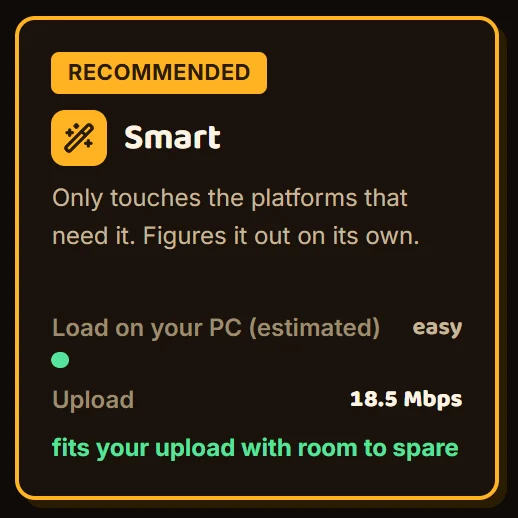
Each platform eats a slice of your upload. Before the stream, Corneta measures your connection, adds it all up and helps you pick a setup that fits with room to spare.

Can I send vertical video to TikTok?

Corneta crops a 9:16 out of your landscape video and you pick the framing, with a preview before it goes out. TikTok and Instagram are still experimental because getting in depends on the platform approving you; the same crop works for any vertical RTMP destination.

Is there an overlay I can use in OBS?

There is. Corneta runs a small server on your own PC that serves the alerts and the chat (emotes included) at a URL you add as a Browser Source — just once. Position, size, duration, sound and message limit are all adjustable, and there's a test alert button so you can check it right there.

Which platforms show up in the app?

Twitch, YouTube, Kick, Facebook and any RTMP server you want to add. TikTok, Instagram and X show up as experimental because they depend on approval and on each platform's own way in.

Does it work on macOS or Linux?

Today the download is Windows only. It's built so other systems can come later, but there's no date to announce. If you're on macOS or Linux, the answer is: not yet.

Your next stream could already be in three places at once.

Download free for Windows

Windows 10/11 · no sign-up · no subscription